





The FlowVella Guide for Mac
Interactions & Shortcuts
Creating a Flow
Creating a New Screen
Adding a Video
Adding Text
Adding an Image
Adding Audio
Adding a PDF
Adding Shapes
Modifying Objects
Advanced: Modifying Objects
Links & Transitions
Modifying Your Screens
Duplicating & Deleting Flows
Posting & Sharing
Opening & Remixing
Printing & Exporting
Contact
Download the PDF
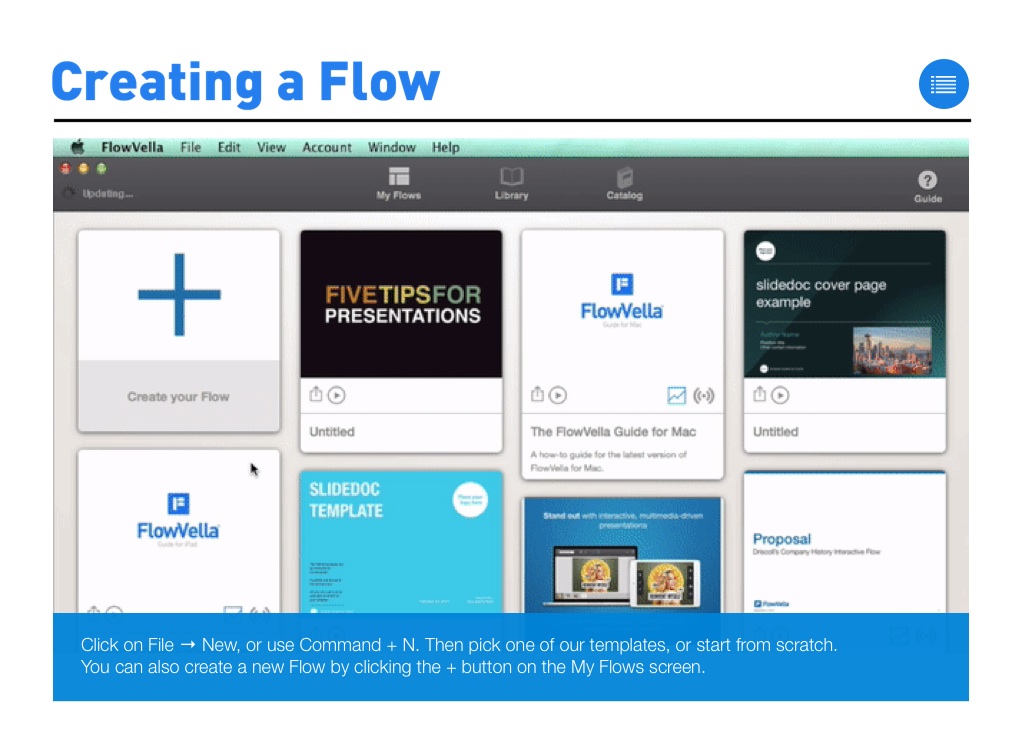
Click on File → New, or use Command + N. Then pick one of our templates, or start from scratch. You can also create a new Flow by clicking the + button on the My Flows screen.
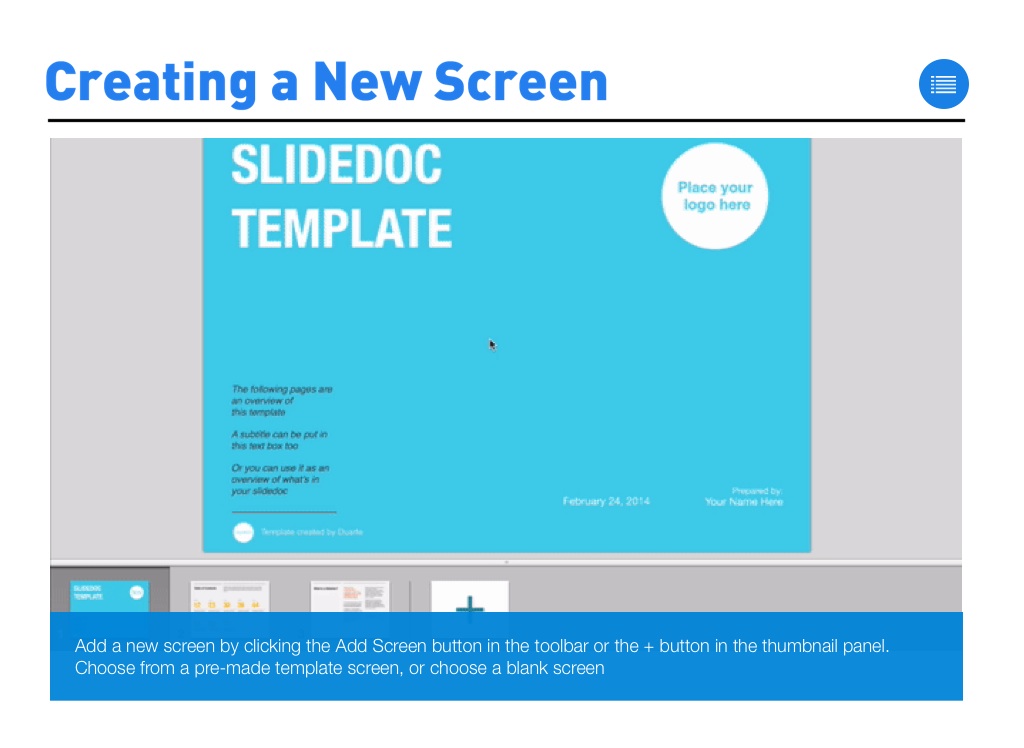
Add a new screen by clicking the Add Screen button in the toolbar or the + button in the thumbnail panel. Choose from a pre-made template screen, or choose a blank screen
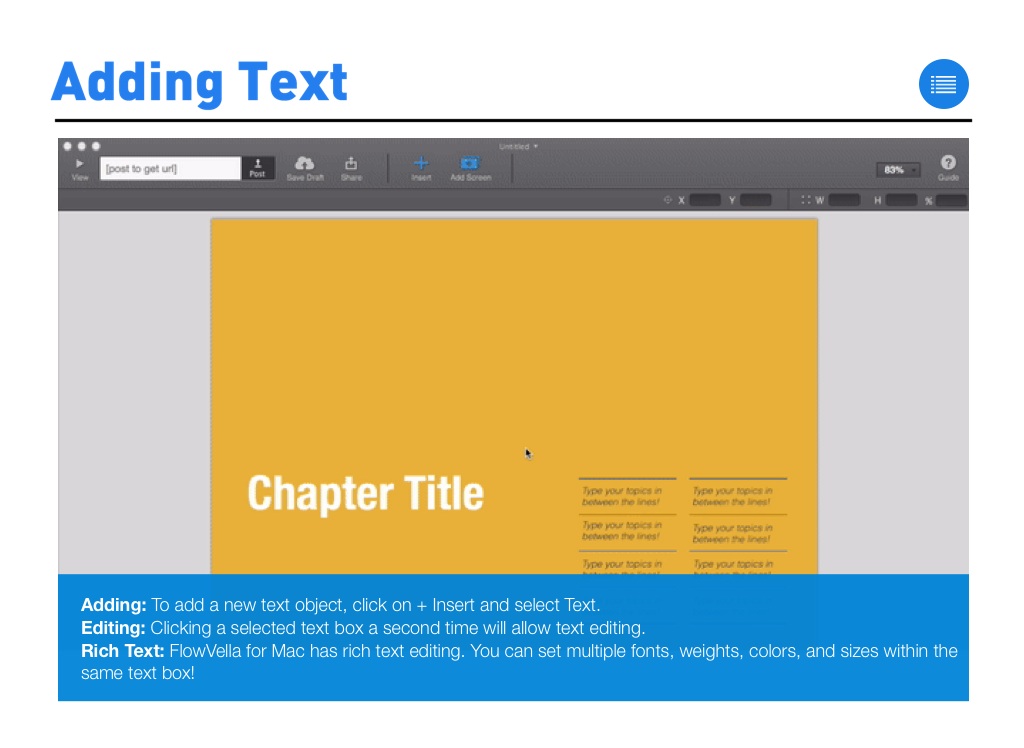
Adding: To add a new text object, click on + Insert and select Text. Editing: Clicking a selected text box a second time will allow text editing. Rich Text: FlowVella for Mac has rich text editing. You can set multiple fonts, weights, colors, and sizes within the same text box!
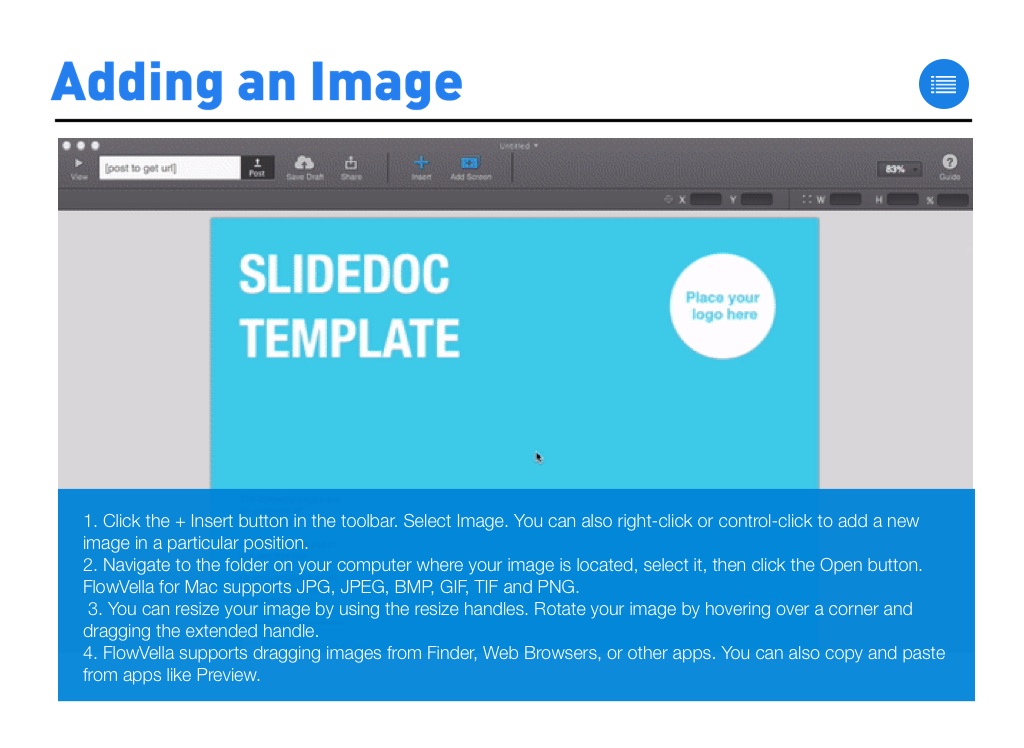
1. Click the + Insert button in the toolbar. Select Image. You can also right-click or control-click to add a new image in a particular position. 2. Navigate to the folder on your computer where your image is located, select it, then click the Open button. FlowVella for Mac supports JPG, JPEG, BMP, GIF, TIF and PNG. 3. You can resize your image by using the resize handles. Rotate your image by hovering over a corner and dragging the extended handle. 4. FlowVella supports dragging images from Finder, Web Browsers, or other apps. You can also copy and paste from apps like Preview.
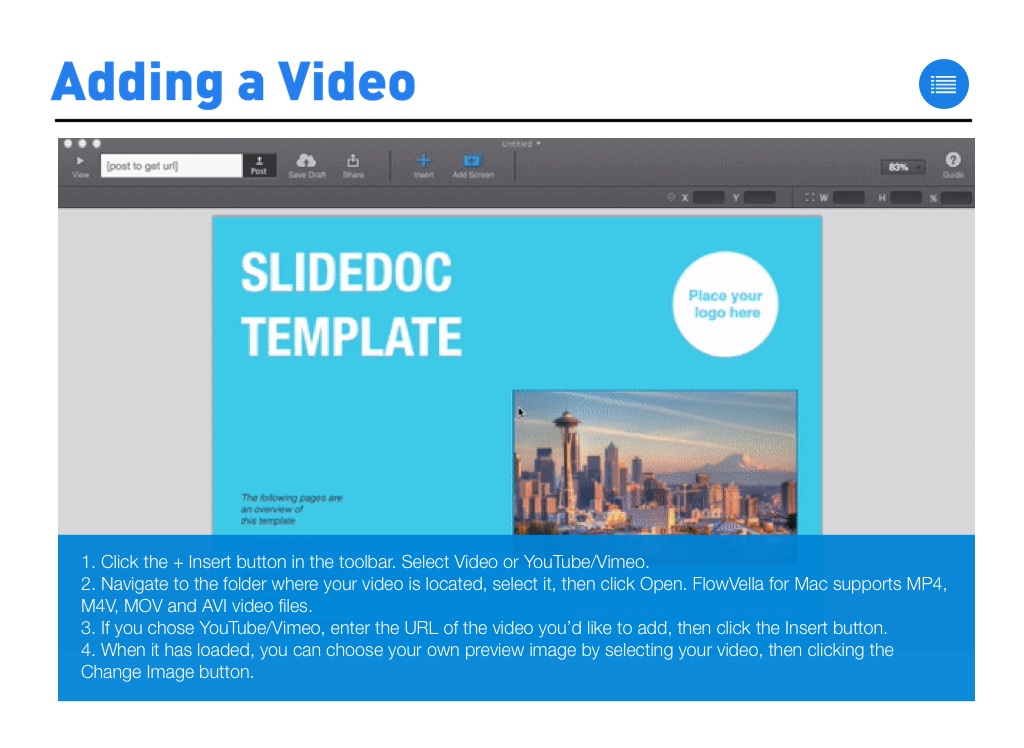
1. Click the + Insert button in the toolbar. Select Video or YouTube/Vimeo. 2. Navigate to the folder where your video is located, select it, then click Open. FlowVella for Mac supports MP4, M4V, MOV and AVI video files. 3. If you chose YouTube/Vimeo, enter the URL of the video you’d like to add, then click the Insert button. 4. When it has loaded, you can choose your own preview image by selecting your video, then clicking the Change Image button.
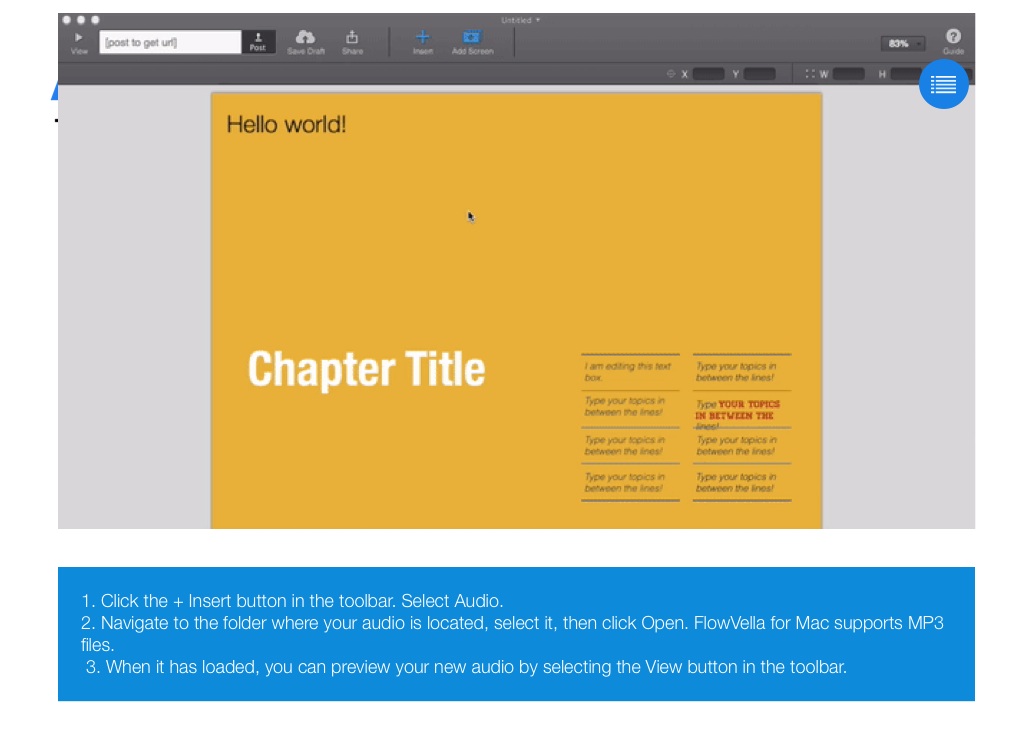
1. Click the + Insert button in the toolbar. Select Audio. 2. Navigate to the folder where your audio is located, select it, then click Open. FlowVella for Mac supports MP3 files. 3. When it has loaded, you can preview your new audio by selecting the View button in the toolbar.
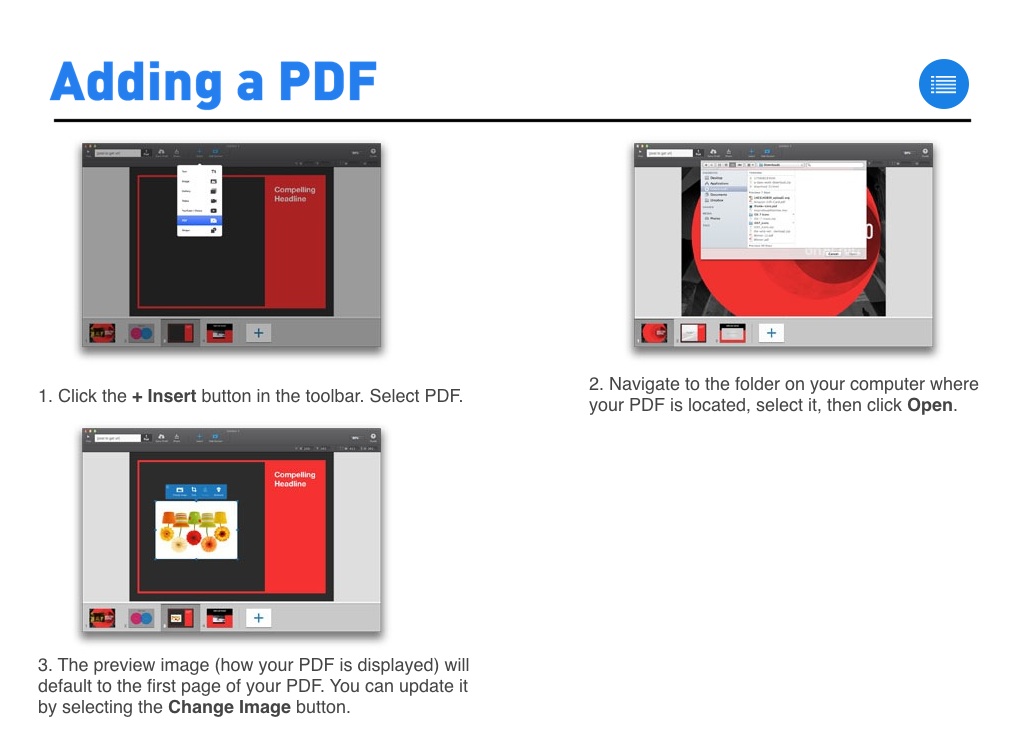
1. Click the + Insert button in the toolbar. Select PDF.
2. Navigate to the folder on your computer where your PDF is located, select it, then click Open.
3. The preview image (how your PDF is displayed) will default to the first page of your PDF. You can update it by selecting the Change Image button.
1. Click the + Insert button in the toolbar. Select PDF. 2. Navigate to the folder where your PDF is located, select it, then click Open. 3. When it has loaded, you can preview your PDF by selecting the View button in the toolbar. Update the preview image by selecting the Change Image button.
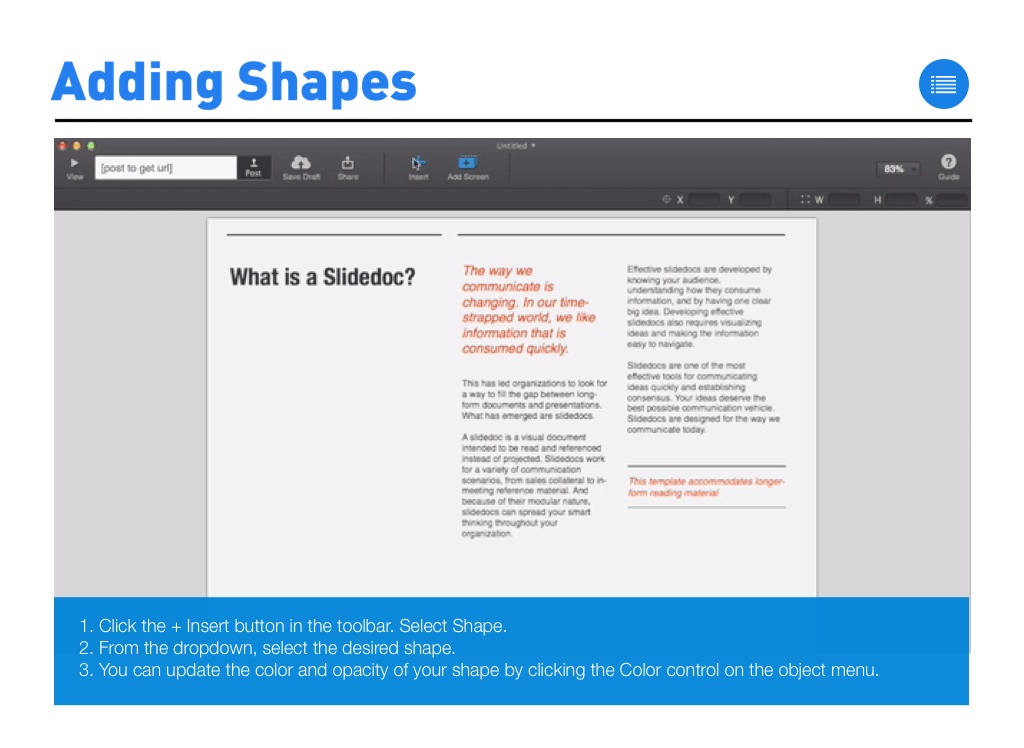
1. Click the + Insert button in the toolbar. Select Shape. 2. From the dropdown, select the desired shape. 3. You can update the color and opacity of your shape by clicking the Color control on the object menu.
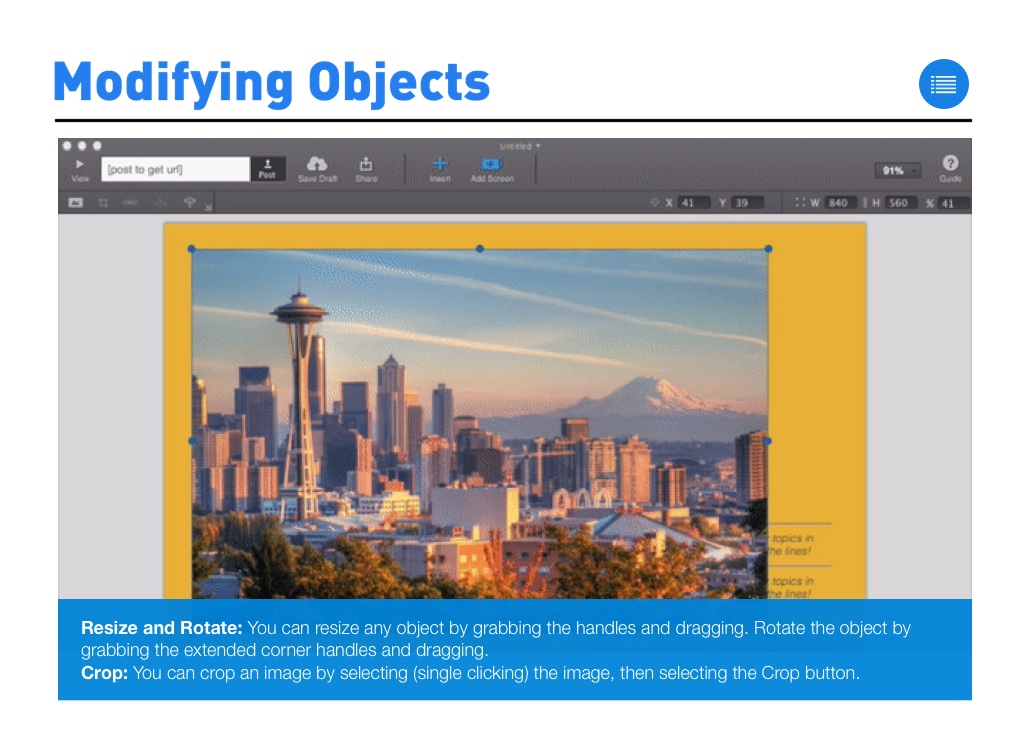
Resize and Rotate: You can resize any object by grabbing the handles and dragging. Rotate the object by grabbing the extended corner handles and dragging. Crop: You can crop an image by selecting (single clicking) the image, then selecting the Crop button.
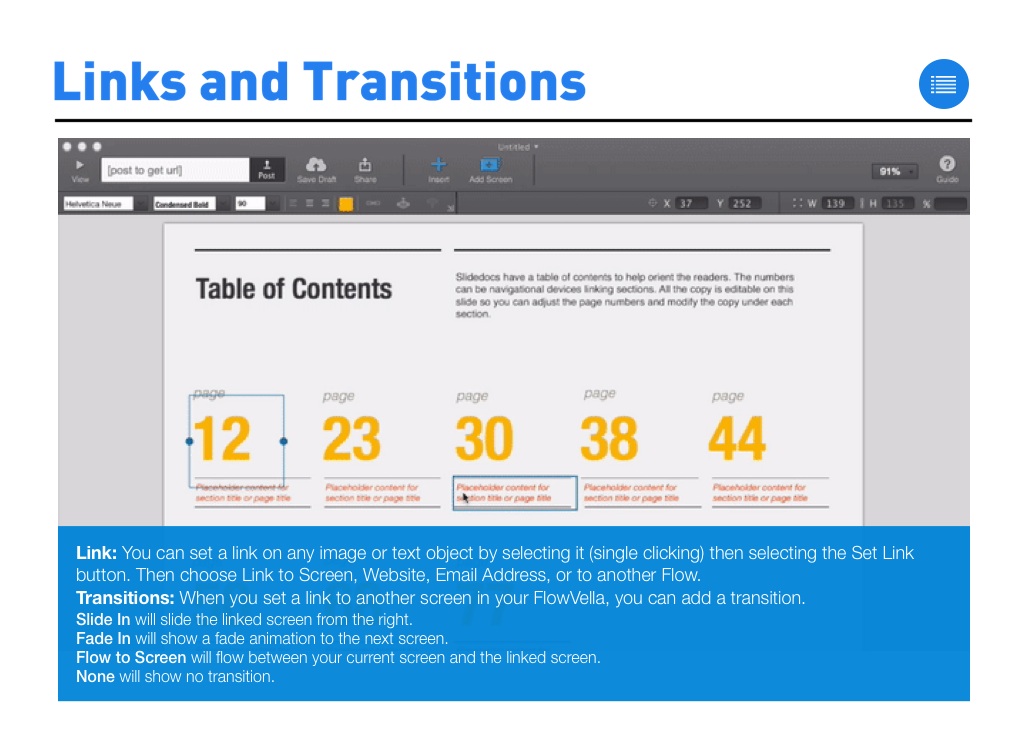
Link: You can set a link on any image or text object by selecting it (single clicking) then selecting the Set Link button. Then choose Link to Screen, Website, Email Address, or to another Flow. Transitions: When you set a link to another screen in your FlowVella, you can add a transition. Slide In will slide the linked screen from the right. Fade In will show a fade animation to the next screen. Flow to Screen will flow between your current screen and the linked screen. None will show no transition.
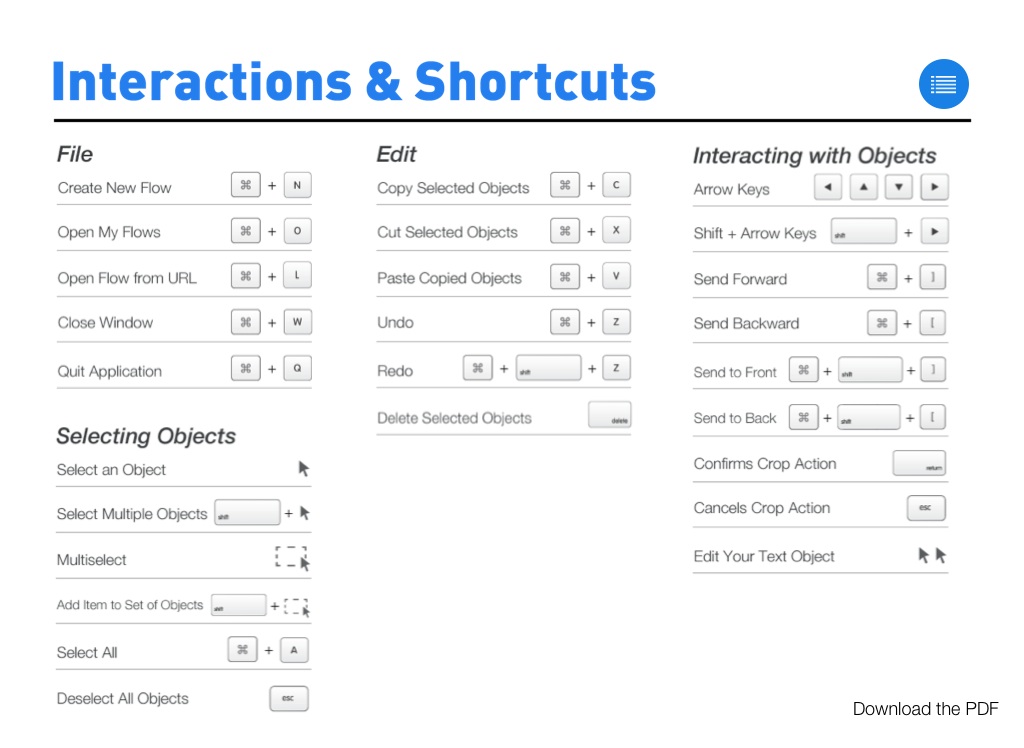
Layers: You can send an object backward or forward by selecting the layer Up or Down Arrow buttons. You can also use shortcuts Command + ] (Forward) or Command + [ (Backward). You can send an object to the front by using Command + Shift + [ or send it to the back by using Command + Shift + ].
XY Panel: Use the XY panel in the toolbar to control the width and height of your objects, and where they are placed on the screen. You can find it under the View menu.
Nudging: Use the arrow keys on your keyboard to nudge an object 1 pt. Use Shift + the arrow keys to nudge an object 10 pts.
Snapping: Snap guides are enabled by default. You can disable snap guides in the Edit menu, or by using Command + T.
Docking Popover: Did you know you can dock the object popover? Just click the arrow in the left corner to move it to the toolbar.
Zoom: Change the zoom level of your screen using the zoom menu in the upper right corner of the toolbar.
Artboard: Did you know you can stash extra objects for use later? Place them in the gray area outside of your screen and drag them onto your screen whenever you need them!
Rearrange Screens: Click & drag your screens to reorder them in the thumbnail panel.
Duplicate a Screen: You can duplicate any screen by right-clicking or control-clicking in the thumbnail panel and selecting Duplicate.
Delete a Screen: You can delete any screen by right-clicking or control-clicking in the thumbnail panel and selecting Delete.
Background Color: Set a background color for your screen by right-clicking or control-clicking or Edit → Change Canvas Color.
Duplicate a Flow: Duplicate a Flow by right-clicking or control-clicking the Flow's tile on the My Flows screen, then selecting Duplicate.
Delete a Flow: Delete a Flow by right-clicking or control-clicking the Flow's tile on the My Flows screen, then selecting Delete.
Save Draft: You can Save a Draft any time you’ve made updates to your FlowVella. Posting: When you’re finished, Post your Flow. We’ll give you a unique URL once your Flow has been posted to share via social media or email. Privacy: Choose from anyone can see, only you can see, or need a link to see. Password Protection: Our Premium Subscribers can add a password for extra security to any of their Flows. Sharing with Friends: As mentioned above, once your Flow has been posted and uploaded, you can share it via Facebook, Twitter, Email, Gmail, LinkedIn, or anywhere else you can copy and paste a URL. Embed Code: Want to embed your Flow on your blog or website? Copy and paste the Embed Code from the Share Your Flow screen.
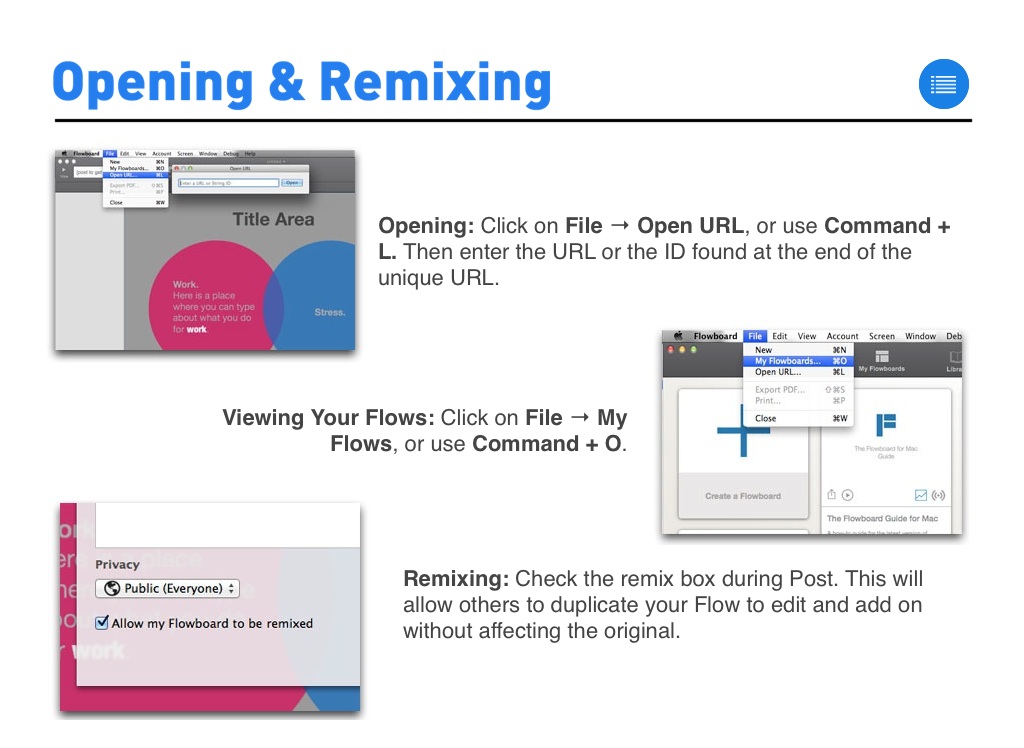
Opening: Click on File → Open URL, or use Command + L. Then enter the URL or the ID found at the end of the unique URL.
Viewing Your Flows: Click on File → My Flows, or use Command + O.
Remixing: Check the remix box during Post. This will allow others to duplicate your Flow to edit and add on without affecting the original.
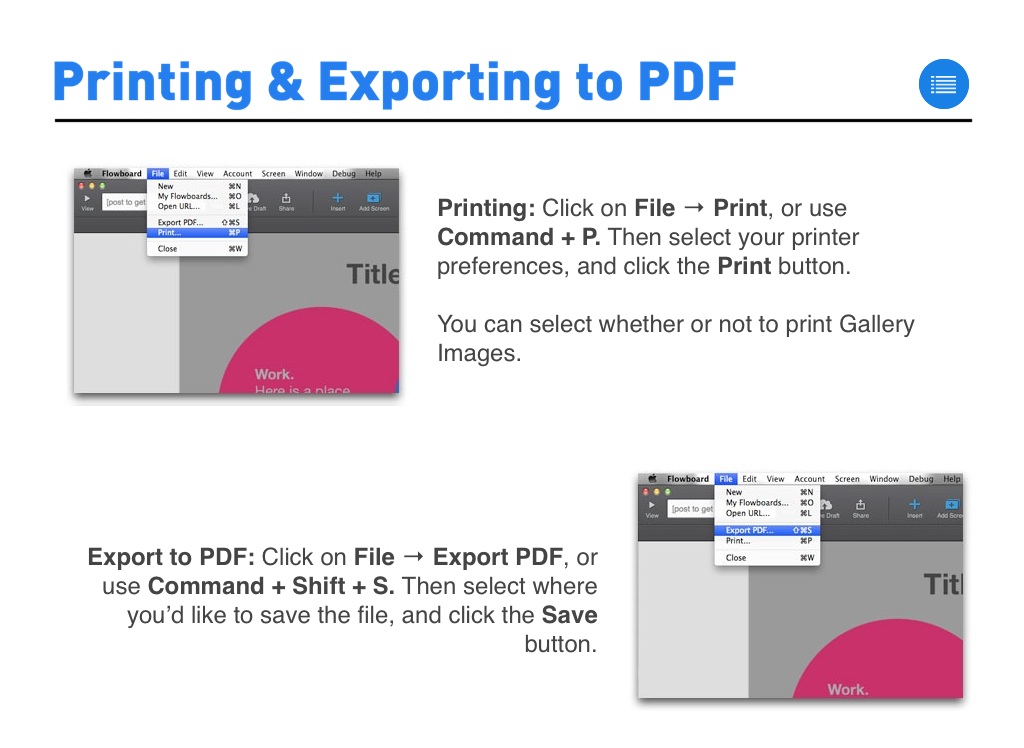
Printing: Click on File → Print, or use Command + P. Then select your printer preferences, and click the Print button. You can select whether or not to print Gallery Images.
Export to PDF: Click on File → Export PDF, or use Command + Shift + S. Then select where you’d like to save the file, and click the Save button.
Need more help? If you have any questions, or need further assistance, please contact us at [email protected].
Questions? Check out our iPad FAQ for common questions and their answers.
Need a great idea? View our Catalog for inspiration.