





FlowVella FAQ
General Support
Objects
Video Support
Creator Support
Storage & Subscription
Posting & Sharing
Features
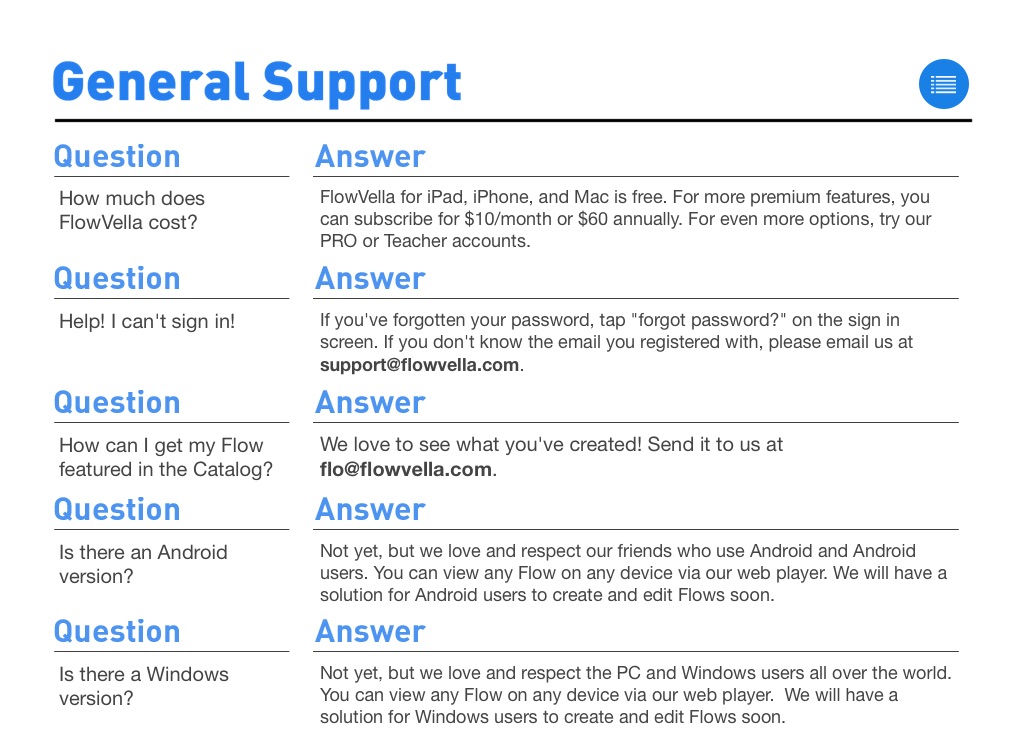
How much does FlowVella cost?
FlowVella for iPad, iPhone, and Mac is free. For more premium features, you can subscribe for $10/month or $60 annually. For even more options, try our PRO or Teacher accounts.
Help! I can't sign in!
If you've forgotten your password, tap "forgot password?" on the sign in screen. If you don't know the email you registered with, please email us at [email protected].
How can I get my Flow featured in the Catalog?
We love to see what you've created! Send it to us at [email protected].
Is there an Android version?
Not yet, but we love and respect Android and Android users. You can view any Flow on any device via our web player. We will have a solution for Android users to create and edit Flows soon.
Is there a Windows version?
Not yet, but we love and respect the PC and Windows users all over the world. You can view any Flow on any device via our web player. We will have a solution for Windows users to create and edit Flows soon.
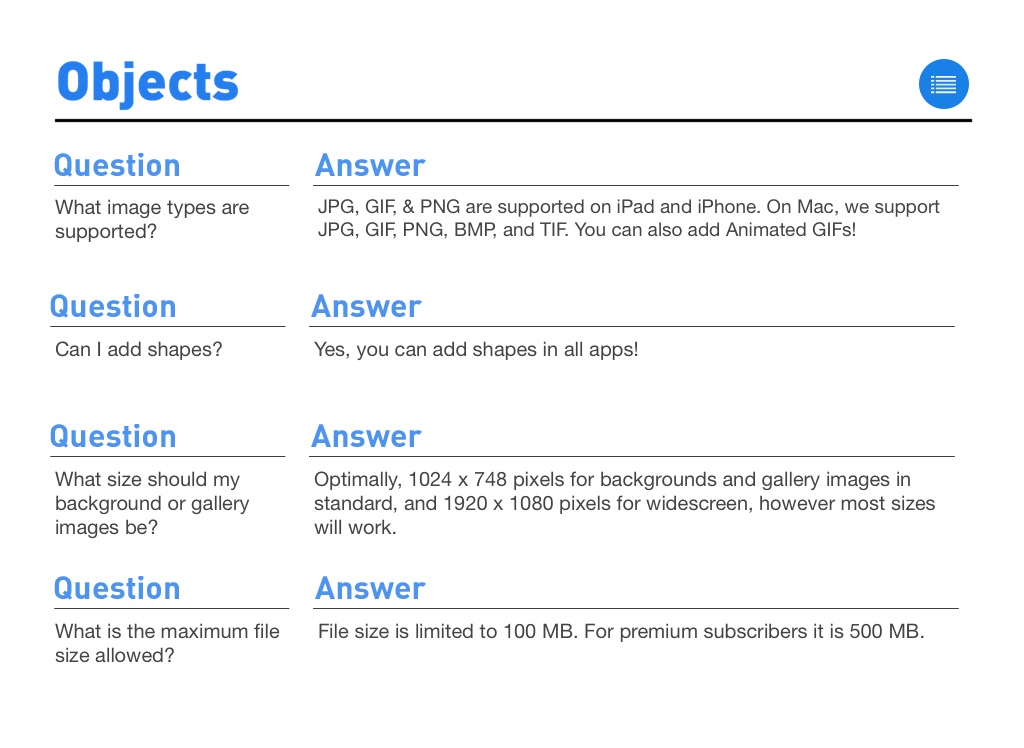
What image types are supported?
JPG, GIF, & PNG are supported on iPad and iPhone. On Mac, we support JPG, GIF, PNG, BMP, and TIF. You can also add Animated GIFs!
Can I add shapes?
Yes, you can add shapes in all apps!
What size should my background or gallery images be?
Optimally, 1024 x 748 pixels for backgrounds and gallery images in standard, and 1920 x 1080 pixels for widescreen, however most sizes will work.
What is the maximum file size allowed?
File size is limited to 100 MB. For premium subscribers it is 500 MB.
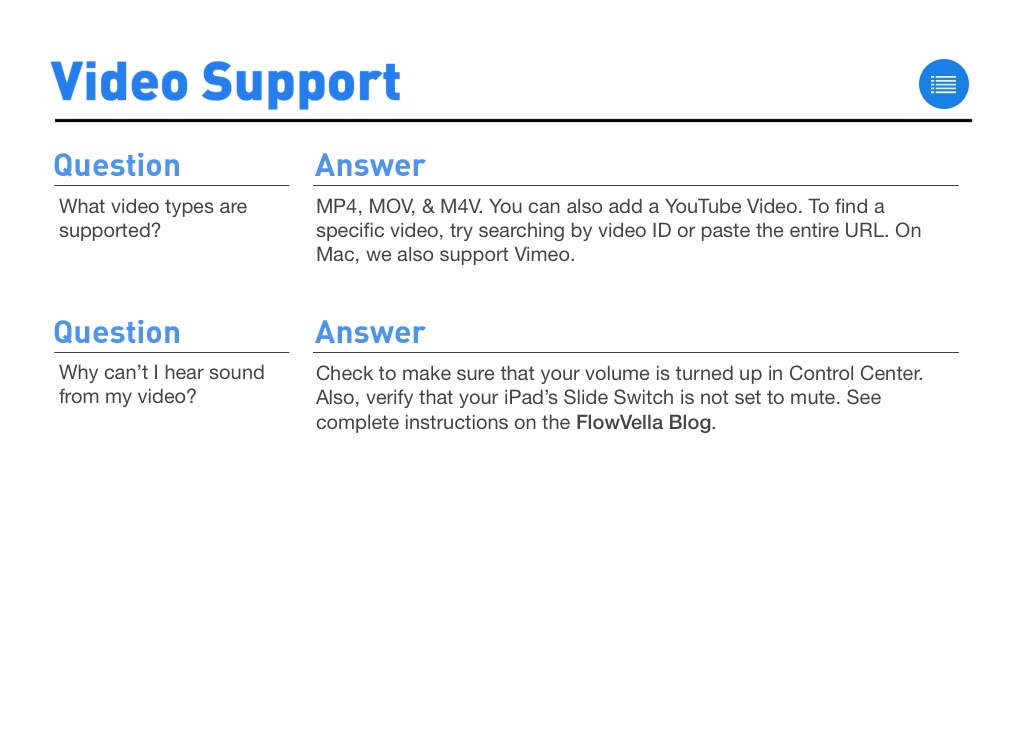
What video types are supported?
MP4, MOV, & M4V. You can also add a YouTube Video. To find a specific video, try searching by video ID or paste the entire URL. On Mac, we also support Vimeo.
Why can’t I hear sound from my video?
Check to make sure that your volume is turned up in Control Center. Also, verify that your iPad’s Slide Switch is not set to mute. See complete instructions on the FlowVella Blog.
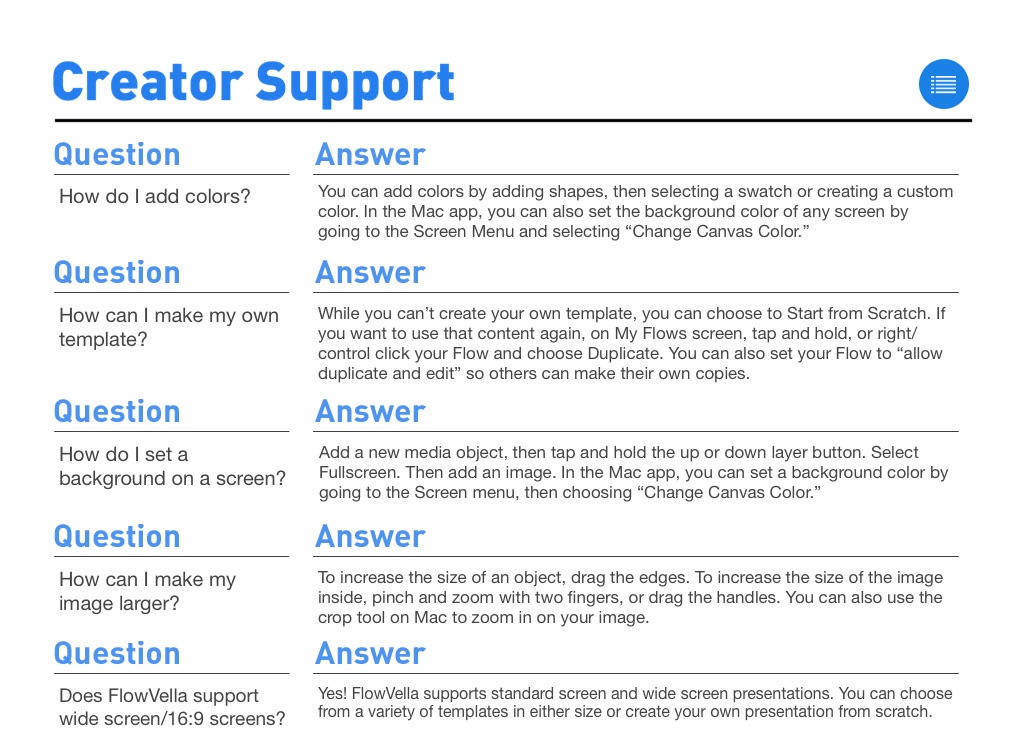
How do I add colors?
You can add colors by adding shapes, then selecting a swatch or creating a custom color. In the Mac app, you can also set the background color of any screen by going to the Screen Menu and selecting “Change Canvas Color.”
How can I make my own template?
While you can’t create your own template, you can choose to Start from Scratch. If you want to use that content again, on My Flows screen, tap and hold, or right/control click your Flow and choose Duplicate. You can also set your Flow to “allow duplicate and edit” so others can make their own copies.
How do I set a background on a screen?
Add a new media object, then tap and hold the up or down layer button. Select Fullscreen. Then add an image. In the Mac app, you can set a background color by going to the Screen menu, then choosing “Change Canvas Color.”
How can I make my image larger?
To increase the size of an object, drag the edges. To increase the size of the image inside, pinch and zoom with two fingers, or drag the handles. You can also use the crop tool on Mac to zoom in on your image.
Does FlowVella support wide screen/16:9 screens?
Yes! FlowVella supports standard screen and wide screen presentations. You can choose from a variety of templates in either size or create your own presentation from scratch.
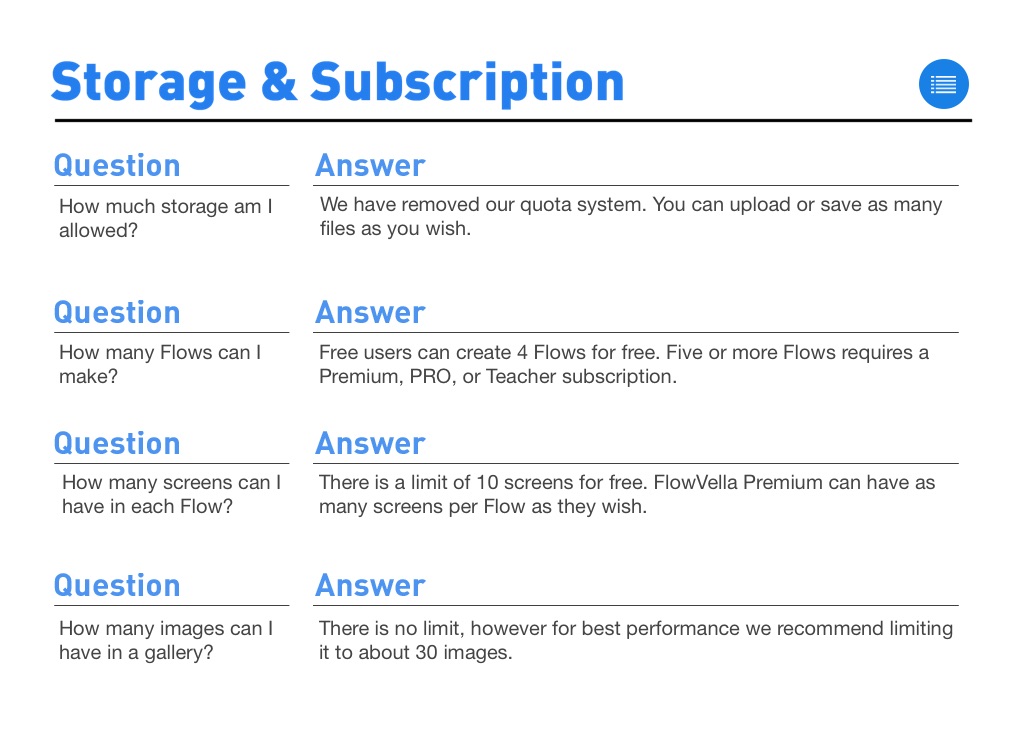
How much storage am I allowed?
We have removed our quota system. You can upload or save as many files as you wish.
How many Flows can I make?
Free users can create 4 Flows for free. Five or more Flows requires a Premium, PRO, or Teacher subscription.
How many screens can I have in each Flow?
There is a limit of 10 screens for free. FlowVella Premium can have as many screens per Flow as they wish.
How many images can I have in a gallery?
There is no limit, however for best performance we recommend limiting it to about 30 images.
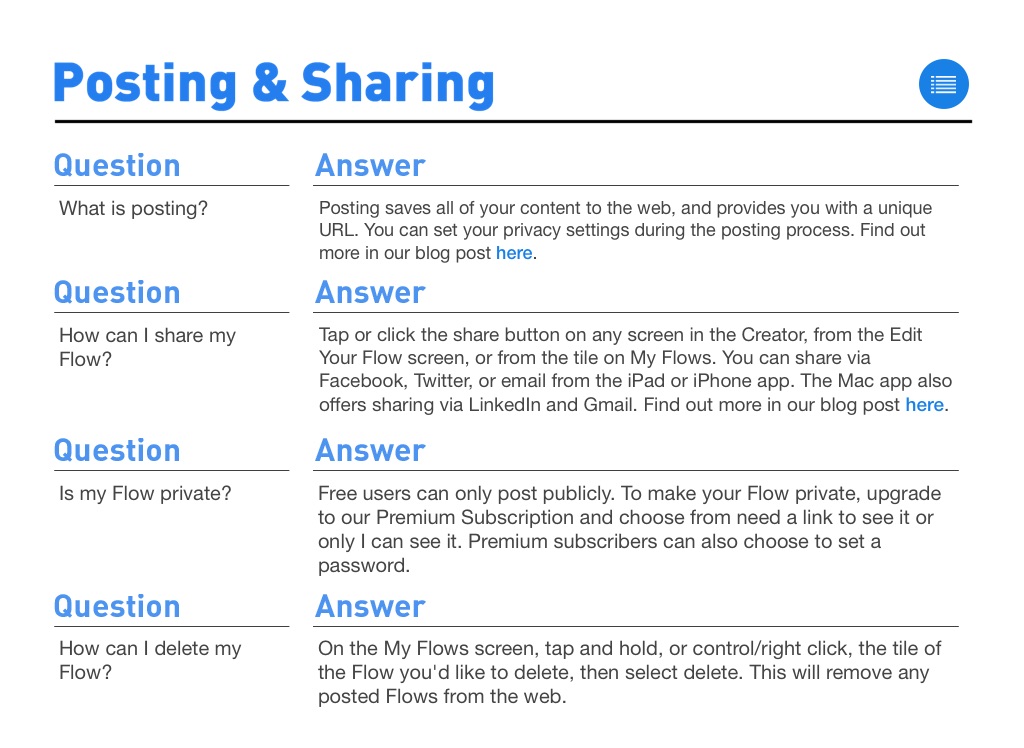
What is posting?
Posting saves all of your content to the web, and provides you with a unique URL. You can set your privacy settings during the posting process. Find out more in our blog post here.
How can I share my Flow?
Tap or click the share button on any screen in the Creator, from the Edit Your Flow screen, or from the tile on My Flows. You can share via Facebook, Twitter, or email from the iPad or iPhone app. The Mac app also offers sharing via LinkedIn and Gmail. Find out more in our blog post here.
Is my Flow private?
Free users can only post publicly. To make your Flow private, upgrade to our Premium Subscription and choose from need a link to see it or only I can see it. Premium subscribers can also choose to set a password.
How can I delete my Flow?
On the My Flows screen, tap and hold, or control/right click, the tile of the Flow you'd like to delete, then select delete. This will remove any posted Flows from the web.
QUESTION:
ANSWER:
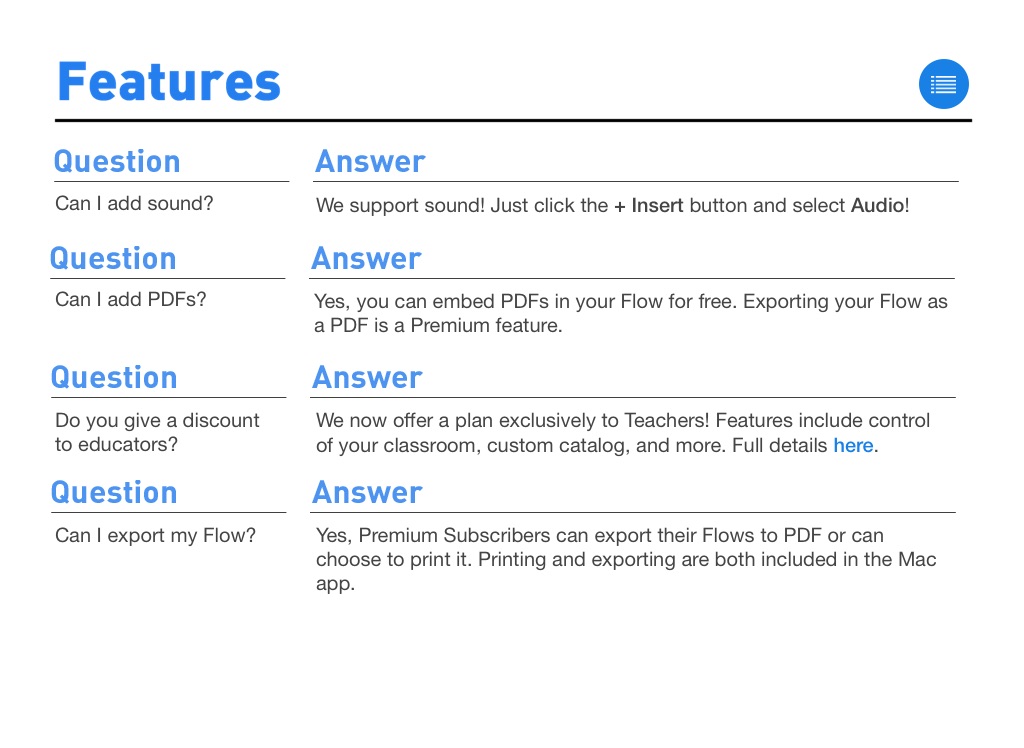
Can I add sound?
We support sound! Just click the + Insert button and select Audio!
QUESTION:
ANSWER:
Can I add PDFs?
Yes, you can embed PDFs in your Flow for free. Exporting your Flow as a PDF is a Premium feature.
QUESTION:
ANSWER:
Do you give a discount to educators?
We now offer a plan exclusively to Teachers! Features include control of your classroom, custom catalog, and more. Full details here.
QUESTION:
ANSWER:
Can I export my Flow?
Yes, Premium Subscribers can export their Flows to PDF or can choose to print it. Printing and exporting are both included in the Mac app.